How to Allocate Indirect Costs in QuickBooks Online
Contractors instinctively know they need to add overhead to their job estimates. They don’t always have a clear picture of what that overhead includes or what it actually costs.
Applying indirect costs to jobs makes that overhead visible. The goal is to deliberately capture the costs included in your internal job estimates, then compare those estimates with actual job costs on the same basis. If your estimate includes estimating salaries, software, insurance, and shared field costs, your job cost reports need to account for those costs too.
QuickBooks Online can have those expenses recorded correctly in the company’s books while leaving them out of individual job reports. This guide walks through how to identify the costs, calculate an allocation using labor hours, and book the entry that puts them on the jobs. We’ll work through one month, check the reports before and after, and carry the updated costs into Levvigo’s WIP template.
The example we’ll work through
We’ll use Sample Contractor, a company with three jobs and $20,000 of indirect expenses to apply. The crews worked 1,000 labor hours across those jobs during the month.
Our example covers January 1–31, 2026. Using one month keeps the calculation simple: we’ll divide January’s indirect costs by January’s labor hours, then apply each job’s share. All three jobs started that month, so there are no prior-year job balances to bring forward. We’ll use accrual-basis financial reports throughout.
Download the practice files
Download the practice pack to work through the example. It includes the source reports, job information, a workbook for your calculation and journal entry, and Levvigo’s blank WIP template.
Download the separate answer key when you’re ready to check your work. It contains the completed allocation, journal entry, reports after allocation, and updated job costs in the WIP template.
The files use sample data. The screenshots show Excel reports formatted like QBO exports and the supporting workpapers.
What you will do
- Identify the indirect costs to apply.
- Understand how the allocation reaches job costs.
- Run the cost and labor-hour reports.
- Calculate the rate for the month.
- Calculate each job’s share.
- Prepare the journal entry.
- Book the entry in QBO.
- Check the company P&L and job reports.
- Bring the updated costs into the WIP template.
Step 1: Identify the indirect costs
Direct costs belong to a specific job: materials delivered to that job, its subcontractor invoices, and its field labor. Indirect costs support several jobs and need a reasonable way to share the cost.
QBO does not identify which expenses are indirect costs. Those costs will likely be included among your other expenses below the gross profit line. Review the expense accounts and their transactions, then identify the costs you want to include in the allocation.
You can create a group in QBO to keep the selected indirect expense accounts together. Grouping them is optional.
For this example, we have identified six expense accounts to include:
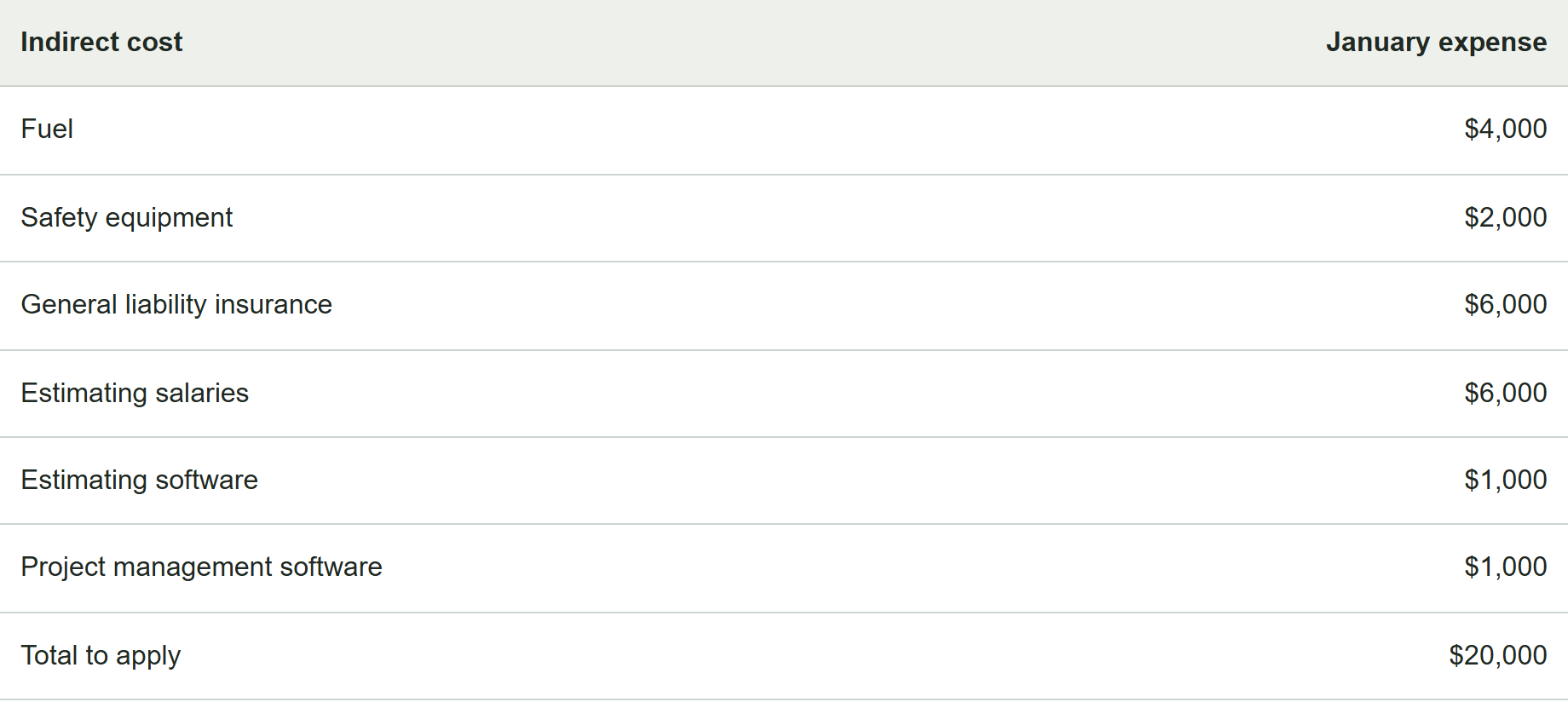
The fuel supports shared field vehicles. The safety equipment supports the field crews. The insurance is the portion of January’s general liability expense included in this company’s job-cost allocation policy. Estimating salaries and software support the estimating function across jobs. Project management software supports the team’s work across projects. These expenses have been recorded below gross profit and have not yet been assigned to individual jobs.
Review the transactions behind the balances. A fuel charge already assigned directly to a job stays out of this pool. General office salaries and other administrative costs outside this allocation pool stay out of this example. Estimating salaries are included in the pool; they are separate from general office salaries. Include January’s insurance expense, not an entire annual premium paid in January. Record any needed prepaid-insurance adjustment before calculating the pool.
Step 2: Understand how the allocation reaches job costs
The allocation moves costs onto the jobs while preserving the balances in the six original indirect expense accounts. We use two offsetting accounts:

That job assignment is what makes the debit appear on the job’s report. The credit stays outside the jobs so it doesn’t cancel the costs we just applied to them.
On the company P&L, you’ll still see what was spent on fuel, safety equipment, insurance, estimating salaries, and software. Below those expenses, Less, applied indirect costs shows how much has been applied to jobs. The offset prevents the company from counting those expenses twice.
QBO labels the P&L section used for job costs “Cost of Goods Sold.” We’ll use that label when identifying the section on a QBO report. In this article, we call the costs themselves job costs.
Step 3: Run the cost and labor-hour reports
In QBO, open Reports and find Profit and Loss. Set January 1–31, 2026, select accrual basis, and run the report. Review the expense accounts and their transactions to identify the indirect costs to apply, then export the report to Excel. QBO’s navigation labels can vary; search for the report by name if your menu looks different.

Next, run Profit and Loss by Customer for the same dates and basis. Use the individual project or job level, rather than only the parent customer. Before allocation, our three jobs have direct costs of $50,000, $80,000, and $60,000. Save this report so you can compare it with the report after allocation in Step 8.
Choose a cost driver
A cost driver is the activity you use to share the pool. A good driver has a reasonable connection to the costs, can be measured reliably by job, and is available each month without a separate research project.
For this example, we use field labor hours as a practical way to spread the shared costs across jobs. A job with more crew hours receives more of the pool. Hours also avoid charging a job more simply because its workers have higher wage rates.
Use the same definition in both parts of the calculation. If the rate uses all eligible field hours, each job’s allocation must use those same eligible hours. Don’t calculate the rate using all hours and then allocate only billable hours.
Labor hours won’t fit every pool. Estimating effort may follow bid complexity more closely than field hours, and project management effort may follow project duration. Machine hours may fit equipment costs better. A subcontract-heavy job with very little employee labor may receive too little overhead under a labor-hour method. Start with a driver you can explain and support. Separate materially different pools when one driver stops representing how the jobs use the resources.
Run the labor-hour report
For hours, search Reports for Time Activities by Customer Detail. Set the same January dates and export the results. Total the eligible field labor hours for each job. If your time setup uses QuickBooks Time reports instead, use its Itemized total time report with the same dates and job scope. Report availability depends on your QBO subscription and time setup.
Include both billable and nonbillable direct field time. Exclude office time, paid time off, and idle time from this example. Check for missing job assignments and reconcile the eligible total to your approved January time records before using it. If your time report uses hours and minutes, convert it to numeric hours before calculating.

Step 4: Calculate January’s rate
Open the Allocation tab in the practice workbook. Add the six indirect expense balances, then divide by eligible January hours:
$20,000 indirect costs ÷ 1,000 labor hours = $20.00 per labor hour.
In the workbook, B12 totals B6:B11, B13 contains the eligible hours, and B14 divides B12 by B13. If the eligible hours are zero, stop and resolve the driver. There’s no meaningful per-hour rate to apply.
Keep the full calculated rate in the formula, even when the displayed rate has two decimal places. The reports and workpapers display whole dollars and hours, while hourly rates retain two decimal places. Keep cents in the underlying allocation and journal-entry amounts. Our example divides evenly, so there’s no rounding difference.
Step 5: Calculate the amount to apply to each job
Multiply each job’s January labor hours by the January rate.

For J101, the Excel formula is =ROUND(B18*C18,2). Repeat it for the other jobs. Check that the amounts total $20,000 and the unapplied balance is zero. If cent-rounding leaves a small difference in another month, document a rounding adjustment to one job so the entry agrees to the pool.

Step 6: Prepare the journal entry
Date the entry January 31, 2026. Debit Applied indirect costs for each job’s allocation. Credit Less, applied indirect costs for the $20,000 total.
On QBO’s journal-entry form, the column labeled Name is where you select the customer or job associated with that line. For each debit, select the specific job receiving the cost: J101, J102, or J104. If the job sits under a parent customer, select the job itself. On the credit line, don’t select a customer or job. That keeps the offset outside the job reports.

The six original indirect expense accounts do not appear in this entry. Their balances remain available for reviewing actual spending. The separate credit prevents the company from counting the same $20,000 twice.
Step 7: Book the entry in QBO
- Open + New or + Create and select Journal entry.
- Enter January 31, 2026 as the journal date and IC-2026-01 as the journal number.
- Enter the three Applied indirect costs debit lines: $10,000, $6,000, and $4,000.
- Assign each debit to the corresponding job using the journal-entry column labeled Name.
- Enter a $20,000 credit to Less, applied indirect costs. Do not assign this credit to a customer or job.
- Describe the allocation, for example: “January indirect costs, 1,000 field labor hours at $20/hour.”
- Confirm debits and credits both total $20,000. Attach the supporting workpaper if available, then select Save and close.
This is a cost allocation. It doesn’t require a bank account, vendor payment, customer invoice, or A/R or A/P line. Don’t set up an automatic reversal. January’s allocation should stay with January’s jobs; February gets its own calculation and entry.
The Journal entry tab is a manual-entry guide, not a QBO import file. For practice, compare your entry to the answer key without posting fictional amounts into your live company.
Step 8: Check the company P&L and the jobs
Rerun the same January accrual reports after saving. On the company P&L, you should see $20,000 in Applied indirect costs under Cost of Goods Sold and a negative $20,000 in Less, applied indirect costs below gross profit, alongside the original expenses.

Gross profit falls from $40,000 to $20,000, while expenses below gross profit fall from $35,000 to $15,000. Company net income stays at $5,000. The allocation changes where the costs appear, while preserving total company expense.
Compare the two Profit and Loss by Customer reports below. The first shows the jobs before applying indirect costs. The second includes each job’s share. On the second report, open each Applied indirect costs amount to confirm it comes from IC-2026-01.
Before allocation: indirect costs not yet applied

After allocation: indirect costs applied to jobs

If you use QBO Projects, also open each project’s profitability report for January and confirm the journal debit appears. Projects is available in QBO Plus and Advanced. Use the accounting reports to verify the entry rather than assuming the project overview updated as expected.
If something doesn’t agree, check these specific items:
- Missing job cost: open the debit line and confirm that it is assigned to the specific job rather than only the parent customer.
- Allocation disappears from the jobs: check whether the credit was also assigned to a job.
- Company net income changes: compare the entry to the four lines above and confirm both accounts are P&L accounts.
- Applied amount doesn’t agree to the selected indirect costs: check the January pool, prior allocations, report dates, and any transactions posted after you calculated the rate.
If you discover an error after posting, correct or replace the original entry through your normal review process. Don’t post the full allocation a second time on top of it.
Step 9: Use the updated costs in the Levvigo WIP template
Allocate indirect costs before preparing the WIP. Otherwise, the schedule can understate job costs and overstate job margins.
Before updating the WIP, check that estimated total job costs include the same categories of indirect costs as actual job costs. The supplied estimates already include them.
Open Levvigo’s WIP template and use the Job information tab from the practice workbook for contract amounts, estimated total costs, and billings. Set the reporting date to January 31, 2026 and each job’s status to In Progress.
On the WIP tab, enter $60,000, $86,000, and $64,000 in column P, Inception to Date Cost, for J101, J102, and J104. Because all three jobs started in January, those are also the current-year costs. Prior-year revenue and costs in columns T and U are zero.

The three cost amounts total $210,000, which agrees to the post-allocation job report.
The answer file shows this cost-transfer stage, before booking a WIP revenue adjustment. Its current-year cost control agrees; revenue and underbilling/overbilling controls can still show differences because that separate entry hasn’t been posted. Don’t change the GL control inputs to force agreement. Follow the QBO WIP preparation guide to complete that process. The template’s filtered schedule tabs require Excel with FILTER support, such as Microsoft 365 or Excel 2021 or later.
Consider a standard rate
The actual monthly rate is a good place to start because you can follow the calculation directly from the month’s books. It can also bounce around when costs arrive unevenly or labor hours change.
A standard rate gives you a steadier amount to apply. For example, suppose a representative historical year had $240,000 of comparable indirect expenses and 12,000 eligible labor hours. That produces a $20-per-hour rate. Review whether those costs and hours still reflect current operations before using it.
You’d apply the standard rate to each month’s actual eligible job hours using the same two accounts and the same entry format.
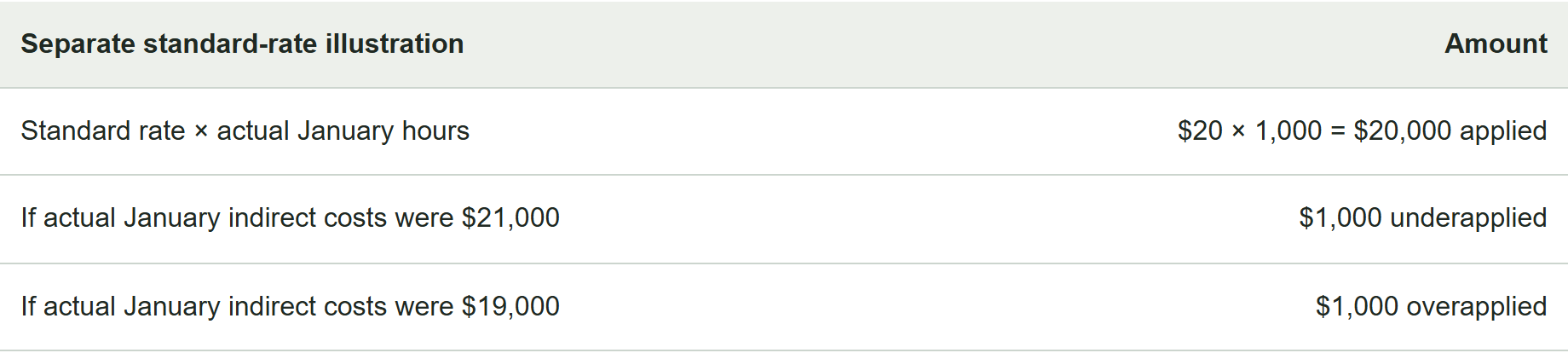
Those are alternatives to our $20,000 actual-cost example, not additional entries. Actual costs less applied costs leave a positive balance when underapplied and a credit balance when overapplied. You’ll see that difference by comparing the selected actual expenses with Less, applied indirect costs.
Review it monthly and cumulatively. A timing difference may reverse in later months. A persistent difference may mean the standard rate needs updating. Document the policy for handling the remaining variance at reporting dates, including whether a material amount needs allocation to jobs and WIP. Don’t automatically clear the variance just to make the balance zero. A standard rate simplifies monthly application; it still needs reconciliation to actual costs.
Need help identifying your indirect costs, choosing a driver, or getting QBO job costs to agree to your WIP? Book a conversation with Levvigo.
Once your job costs include the applied indirect costs, use them to prepare your WIP. Follow our step-by-step guide: How to Prepare a WIP Report from QuickBooks Online.